
Getting Started
WhatsApp configuration
Connect your WhatsApp Business API so the AI agent can receive messages, reply, and create bookings. You'll need a Meta Developer account and your own API credentials (BYOK).
Prerequisites
Everything in the checklist above must be in place before Step 3. If verification is still pending, you can complete Pitstop setup and test with Meta's sandbox number first.
Step 1: Create a Meta app
- In Meta Developer Console, create a new app (type: Business)
- Add the WhatsApp product to your app
- Note your App ID and App Secret
Step 2: Get WhatsApp credentials
- Add and verify your business phone number in the WhatsApp setup flow
- Copy the Phone Number ID and WhatsApp Business Account ID
- Generate a permanent System User access token with
whatsapp_business_messagingpermission
Step 3: Configure webhook in Pitstop
- In Pitstop go to Settings → Agents → WhatsApp
- Paste Phone Number ID, WABA ID, and access token
- Copy the Webhook URL and Verify token shown in Pitstop
- In Meta → WhatsApp → Configuration, set the callback URL and verify token
- Subscribe to
messages(andmessage_template_status_updateif using templates)
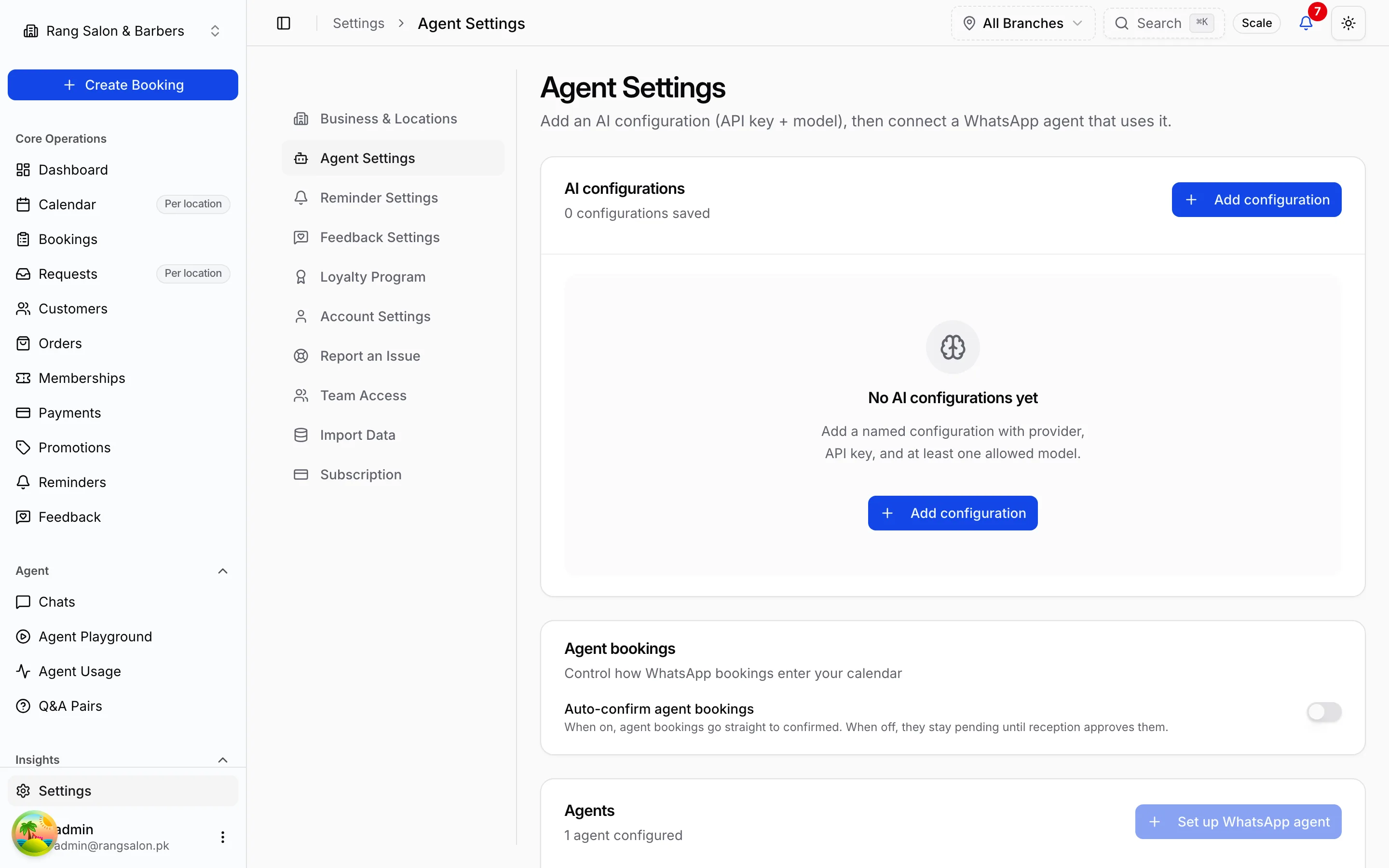
Step 4: Connect your LLM
In Agent Settings → LLM Provider, add your API key (OpenAI, Anthropic, Google, etc.) and choose the model. Pitstop does not bill for tokens, usage goes to your provider account.
Step 5: Test
- Send a test message to your business number from a personal WhatsApp
- Confirm the reply appears in Chats
- Complete a test booking and verify it on the calendar